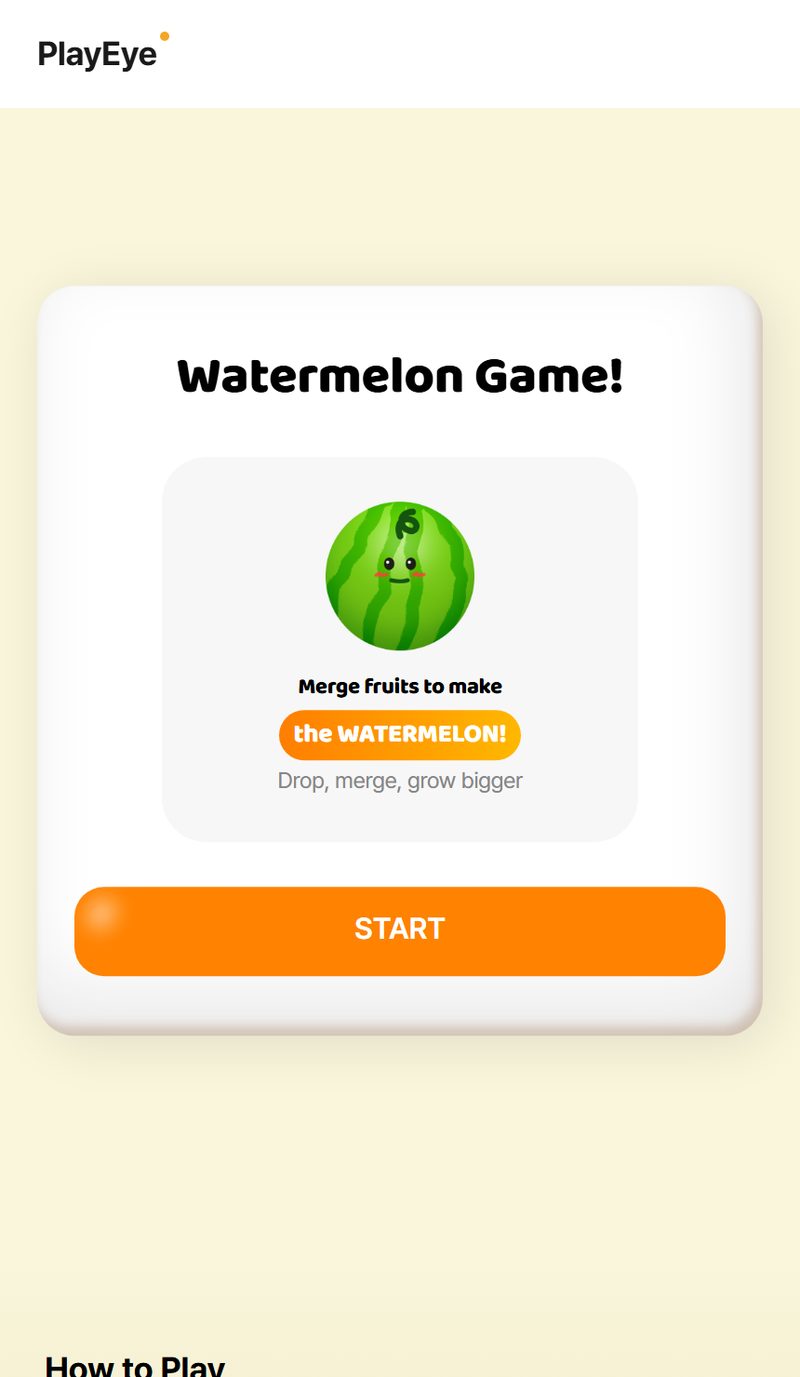
We already had a browser game live. It was a React + Vite build of Watermelon Game — the drop-and-merge fruit puzzle — running fine at a URL. The question was whether we could get it into the Microsoft Store without rewriting it as a native Windows app. Rebuilding a working web game in another stack just to earn a Store listing felt like paying twice for the same game.
Turns out we didn't have to. We wrapped the exact same web build as a PWA, ran it through PWABuilder, and shipped it. Zero native code.
Short answer: You can publish an existing web app to the Microsoft Store as a Progressive Web App. Make the site a valid PWA (HTTPS, a manifest.json, and a service worker), deploy it to a live HTTPS URL, feed that URL to PWABuilder, and let it generate an MSIX package. Reserve the app name in Microsoft Partner Center, paste the identity values Partner Center gives you into PWABuilder, download the MSIX, upload it, and submit. No native rewrite. PWABuilder is free.
This is the version of the process we wish someone had written down before we started — the actual clicks, in order, plus the parts that quietly cost us an afternoon.
Step 1: Make the game an actual PWA
A "Progressive Web App" sounds like a framework. It isn't. It's three ingredients your existing site either has or doesn't:
- HTTPS. Non-negotiable. PWABuilder won't touch an
http://URL. - A web app manifest — a
manifest.jsonthat names the app, points to icons, and sets things like the display mode and theme color. - A service worker — a small script that gives the app an offline-capable install identity. It doesn't have to do anything clever; it has to exist.
Our game is Vite-based, so we didn't hand-roll any of this. We added vite-plugin-pwa to the build. On vite build it generates the manifest, registers a service worker, and wires up the icon set for us. That was the entire "make it a PWA" step — one plugin and its config block.
The one part worth doing carefully is icons. The manifest needs a proper range of icon sizes, and Windows in particular wants a 512×512 PNG present. Get the icons right in the manifest here and PWABuilder stops nagging you two steps later. Skimp on them and you'll be back editing the manifest after PWABuilder flags it.
Step 2: Deploy it to a live HTTPS URL
PWABuilder doesn't read your local folder or your repo. It reads a live URL — it fetches your deployed site and inspects the real manifest and service worker your server hands out. So the PWA has to be published before you can package it.
Ours went out to https://playeye.io/suika/. That's the URL we typed into PWABuilder. Whatever your host — S3 and CloudFront, GitHub Pages, Netlify, Vercel — the requirement is the same: a public HTTPS address that serves the manifest and registers the service worker. Open it in a fresh browser tab first and confirm the install prompt shows up. If the browser thinks it's installable, PWABuilder will too.
Step 3: Run it through PWABuilder
Go to PWABuilder, paste the live URL, and let it scan. It grades the PWA and shows a checklist — manifest present, service worker present, icons valid, and so on. This screen is genuinely useful as a linter: it tells you exactly what's missing before Microsoft ever sees the package. We wanted manifest, service worker, and icons all green before moving on.
Once the report looks healthy, hit Package for Stores and choose the Windows package. That's the option that produces an MSIX — the installer format the Microsoft Store expects. But don't generate it blind yet. The Windows option asks for a set of identity values, and those don't come from PWABuilder. They come from the next step.
Step 4: Reserve the app in Microsoft Partner Center
To publish to the Microsoft Store you need a Microsoft Partner Center developer account (a one-time registration fee applies). Inside Partner Center you create the app and reserve its name. Reserving the name is what makes Partner Center mint the app's identity — a small bundle of values that tie your MSIX to your account and your reserved listing.
Those values include things like the package Name, the Publisher identity, the Publisher display name, and the Package Family Name. You don't invent any of them. Partner Center generates them and shows them to you on the app's identity page. Treat them as account credentials — they're specific to your publisher, and they're the glue that lets the Store recognize your upload as yours.
Step 5: Paste the identity values into PWABuilder and build the MSIX
Back in PWABuilder's Windows package options, drop in the values Partner Center gave you — each field on the PWABuilder form maps to a field on the Partner Center identity page. Match them one-to-one. This is the step people get wrong: fill these in by hand, out of order or with a typo, and the MSIX you generate won't line up with your reserved app, and Partner Center will reject the upload with an identity mismatch that isn't obvious to debug.
Get the values matched, generate, and PWABuilder hands you a downloadable package — the signed MSIX plus a short readme of next steps. That file is your game, ready to submit.
Step 6: Upload the MSIX and submit
Back in Partner Center, create a submission for the reserved app and upload the MSIX. Then fill in the listing like any store app: description, screenshots, category, age rating questionnaire, pricing (ours is free). Submit, and it goes into Microsoft's certification queue.
That's the whole path. Our Watermelon Game came out the other side as a real Microsoft Store listing — Store ID 9PJ6TL16XW5X — running the identical web build we already had live at playeye.io/suika/. Same game, two front doors.
What actually bit us (and what to check)
The happy path above is real, but here's where we lost time:
- Icons before anything else. The single most common reason the PWABuilder report goes yellow is an incomplete icon set. Have your 512×512 (and the smaller sizes) declared in the manifest before you package, not after.
- The identity values are the whole ballgame. Name, Publisher, Publisher display name, Package Family Name — these must match Partner Center exactly. Copy-paste, don't retype. A mismatch here fails at upload, not at generation, so you won't notice until the last step.
- PWABuilder reads live, not local. Any manifest or service-worker fix has to be deployed before you re-scan. We caught ourselves editing locally, re-running PWABuilder, and wondering why nothing changed — because the live URL still served the old files.
- Certification is not instant. Budget days, not minutes. New publisher accounts can also take extra time for the first submission while your account itself is being verified.
- Screenshots have requirements. Have store-spec screenshots ready before you start the submission, or you'll stall at the listing step with everything else finished.
None of these are hard. They're just the kind of thing that turns a two-hour job into a two-afternoon one if you meet them in the wrong order.
Should you do this for your game?
If you already have a working browser game and you're eyeing the Microsoft Store, PWA-to-MSIX is the cheapest honest way in. You keep one codebase. You ship the same build you already test and deploy. You don't fork your game into a native project you'll then have to maintain twice. For a small studio, "don't build it twice" is most of the decision.
The catch is that a wrapped PWA is a wrapped web app — it behaves like your site, because it is your site. If your game needs deep native OS integration, that's a different project. For an arcade or puzzle game that already runs great in a browser, though, the wrapper is exactly enough.
You can play the web version we shipped, Watermelon Game, right now — that's the same build now sitting in the Microsoft Store. It lives alongside the rest of our browser games on PlayEye, including Farm Farm Tile, which is next in line for the same treatment.
FAQ
Do I need to write any native Windows code to publish a web game to the Microsoft Store?
No. That's the entire point of the PWA route. If your game already runs as a website, PWABuilder wraps it into an MSIX installer and the Store treats it as an app. We shipped our Watermelon Game to the Store from the same React + Vite build that runs in a browser — not a single line of native Windows code.
Is PWABuilder free?
Yes. PWABuilder itself is free to use for generating the package. The cost that isn't free is the Microsoft Partner Center developer account, which has a one-time registration fee. After that, packaging and submitting cost nothing.
How long does Microsoft Store review take?
Plan for days, not hours. Certification runs on Microsoft's queue, and a brand-new publisher account can take extra time on its first submission while the account is being verified. It's not the bottleneck once you're set up, but don't schedule a launch assuming same-day approval.
Can any website become a Microsoft Store app?
Almost — as long as it meets the PWA baseline. It has to be served over HTTPS, expose a valid manifest.json with a proper icon set, and register a service worker. Miss any of those three and PWABuilder will flag it before you can package. A plain static page with no manifest won't qualify; a properly configured PWA will.
What are the identity values PWABuilder asks for, and where do I get them?
They're the values that tie your package to your Store listing — the package Name, Publisher, Publisher display name, and Package Family Name. You don't make them up. Microsoft Partner Center generates them when you reserve your app's name, and you copy them from the app's identity page into PWABuilder's Windows options. Match them exactly, or the upload will be rejected for an identity mismatch.